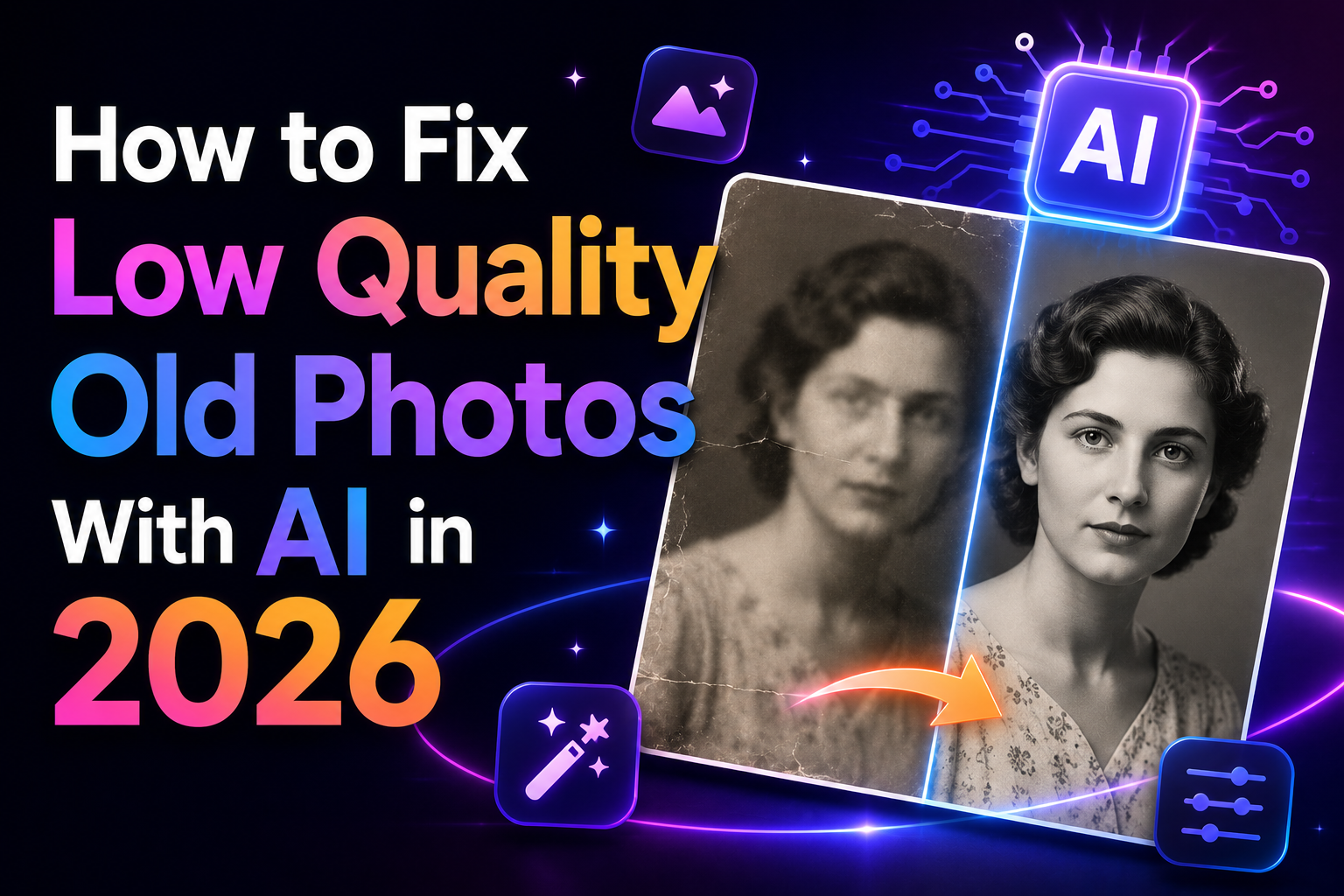
My uncle found a box of photographs from the 1980s while clearing out his house. Forty years of fading, creasing, and water damage. We scanned them all and then I spent two weekends figuring out exactly which AI tools actually restore them properly — and which ones just make faces look strange.
Old photos carry something irreplaceable — the specific light of a day that doesn’t exist anymore, the exact way someone smiled before years changed them, the background details of a house or street that’s since been demolished. When those photos are blurry, faded, or damaged, that irreplaceability becomes even more acute.
The good news is that AI photo restoration has genuinely gotten remarkable in the last two years. The bad news is that not all tools are equal, and the wrong approach can actually make things worse — particularly with faces, where AI often makes confident guesses that don’t match the person’s actual appearance.
Here’s what I learned from actually going through 60+ old photographs with different tools, including what worked, what failed, and the specific order of operations that produces the best results.
What AI Photo Restoration Actually Does
It helps to understand what’s happening under the hood before picking tools — because different problems need different AI approaches.
Photo restoration isn’t one thing. It’s actually four separate problems:
Upscaling takes a small, low-resolution image and generates believable detail to fill in the extra pixels — essentially educated guessing based on what that type of image typically looks like. Denoising removes grain, scan artifacts, and compression noise. Color restoration brings back faded or yellowed tones to something close to natural. And damage repair handles physical damage — scratches, water stains, creases, torn edges.
Most tools bundle these together, but they use different AI models for each — and the best results usually come from treating each problem separately rather than using one “restore everything” button.
The order matters as much as the tool. Correct the color first, then denoise, then upscale. Doing it backwards — upscaling a noisy image — amplifies the noise and makes it much harder to remove afterward. This one workflow change improved my results more than switching tools did.
The Tools That Actually Work
Remini is specifically built around facial enhancement and it shows — the face AI it uses is trained on millions of portrait photos and handles both old and damaged facial photographs better than any other consumer-facing tool I tested. Upload a blurry old portrait and it fills in detail that genuinely looks natural rather than AI-generated. The free tier gives you a few enhancements per day, which is enough for working through a batch gradually. The app version (iOS and Android) is excellent — the PC experience through the browser is slightly less reliable. Best for: family portraits, individual photos, wedding pictures, passport-style shots.
For serious photo restoration — particularly anything destined for print at A4 size or larger — Topaz Photo AI runs locally on your computer and is in a completely different quality bracket from web-based tools. It runs multiple AI models in sequence: upscale, denoise, sharpen, and face recovery, each separately tunable. The results on old scanned photographs are genuinely impressive — fine textile detail in clothing, background elements that web tools smear into blurs, and a natural film quality that doesn’t look digitally processed. It’s expensive for casual use but if you have an archive of family photographs worth preserving properly, the investment makes sense. Works offline, no upload privacy concerns.
Upscayl is the best free upscaling tool available and it runs entirely on your own machine — no uploads, no accounts, no subscriptions. Drag in your image, choose your upscale factor (2x, 4x, 8x), choose a model (I use “Remacri” for old photos), and it processes locally using your GPU. It doesn’t do color restoration or scratch repair — it’s specifically an upscaling tool — but for turning a 400px scan into a 3200px image with believable detail, it’s genuinely excellent. Use this after doing color correction and basic cleanup in a photo editor.
Lightroom’s AI tools handle color restoration and tone correction better than any dedicated “restore old photo” button I’ve tried. The Auto function has gotten sophisticated enough in 2025–26 that it recognizes the yellowing and fading patterns of old photograph chemistry and corrects toward natural color rather than generic bright. Combined with Firefly’s Generative Fill for damaged areas — you can literally brush over a scratch or torn corner and Firefly generates believable replacement content — this combination handles physical damage better than most automated tools. Not the fastest workflow, but the most controllable.
If your old photos are black and white and you want to see them in color, MyHeritage In Color is the best tool for this specifically. It was built for family history use cases — which means it’s trained specifically on the kind of portrait and family photography that fills old albums. The colorization is naturally toned rather than over-saturated, and it handles skin tones with noticeably more accuracy than general-purpose colorization tools. The free tier allows a handful of colorizations per month, which is enough for a curated selection of the best shots from an album.
“AI can’t recreate detail that was never captured. But it can make an educated guess — and in 2026, those guesses are good enough that people who knew the person often say it looks right.”
Step-by-Step: The Workflow That Gets the Best Results
This is the order I settled on after testing different sequences. The difference between doing these steps in the right order versus the wrong order is significant.
Quick Tool Comparison
Mistakes That Made Results Worse
Every major photo app now has some version of an “enhance” or “restore” button that attempts to do everything at once. For simple, mildly faded photos this can work fine. For seriously damaged or low-quality images, the one-click approach often over-smooths textures, generates wrong facial features, and creates an uncanny quality that’s somehow worse than the original blurriness. Use it as a starting point, not a finishing move.
This was my first mistake with the family photos. I ran everything through Upscayl immediately, then tried to denoise the results. Upscaling amplifies noise — those tiny grain dots become larger, more visible artifacts. The noise removal then has to work harder and often leaves visible processing artifacts in the result. Denoise and repair first, upscale last.
This is the most important mistake to watch for. AI face enhancement models make confident-looking guesses about eye shape, nose structure, and skin texture. On a clear but low-resolution photo, these guesses are usually close. On a very blurry or damaged original where the face is barely discernible, the AI is essentially inventing a face. Show the result to someone who knew the person — if they say “that doesn’t look like them,” the AI got it wrong. Don’t accept a generated face as accurate without verification.
When collecting old family photos digitally, people often share them through WhatsApp or Messenger — which compresses images to tiny file sizes automatically. These compressed versions are significantly harder for AI tools to restore than the same photo sent through Google Drive or email as an original file. Always ask for the original file, not a messaging-app share, before attempting restoration.
Most web-based photo restoration tools upload your images to their servers for processing. For personal family photos, this is worth being aware of. Upscayl and Topaz Photo AI both process images locally on your device — nothing leaves your computer. If privacy of old family photos matters to you, prioritize those local tools over web-based alternatives.
What Happened With My Uncle’s Photographs
Of the forty-plus photos from that box, about thirty came out well enough to frame or print. Ten were too far gone — physical damage so extensive that AI restoration was essentially generating a new image rather than restoring an existing one, and those felt dishonest to present as real photos.
The best results came from the photos that were just faded and low-resolution — not physically damaged. A scan, color correction in Lightroom, Remini for the faces, Upscayl at 4x, and the results genuinely moved people who saw them. My uncle’s parents at their wedding in the 1970s — that photo in particular came out remarkably well. The faces were recognizable for the first time in years.
The physically torn and water-damaged ones were harder. Firefly’s generative fill handled small tears and spots well but larger damaged areas it invented content that was plausible but not accurate. We treated those restored versions as interpretations — printing them alongside the original damaged version so the family could see both.
Don’t try to restore everything at once. Start with five or six photos — the ones with the clearest sentimental value — and learn the workflow on those. The first attempts will be imperfect. By the fifth or sixth photo you’ll have a feel for which tool handles which problem type on your specific collection of photos. That knowledge makes everything after faster and better.
Scan at 600 DPI minimum if working from physical photos, and collect digital versions as original files rather than messaging-app shares. Follow the workflow order: color correction → damage repair → face enhancement → upscaling → final check. Use Remini for faces, Upscayl for free upscaling, Topaz Photo AI if you need professional print quality, and Firefly’s Generative Fill for physical damage. Always verify AI-generated faces with someone who knew the person — the technology is impressive but it makes mistakes on damaged originals. These tools won’t bring back what was never captured. But for photos that just need a chance to be seen clearly again, they do something genuinely meaningful.