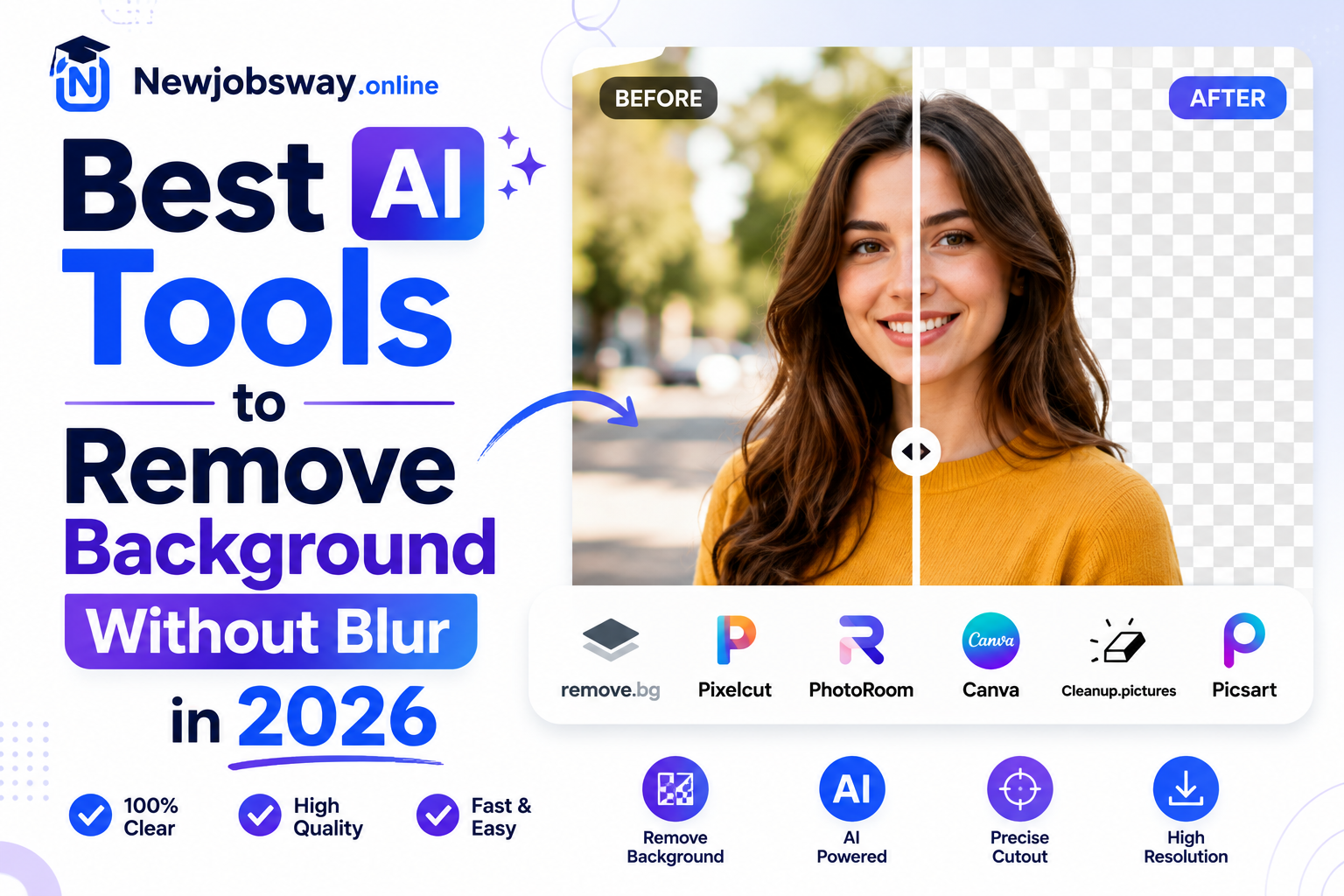
Hair strands, fabric edges, product outlines — the AI tools that keep them razor-sharp instead of turning them into cotton wool.
A friend of mine runs a small clothing brand from home. She photographs her products on a mannequin, removes the background herself, and uploads to her store. Simple enough — except every tool she tried kept doing the same infuriating thing: blurring the edges of the fabric so badly that fine textures looked like they’d been smeared with a wet finger.
She sent me a sample once. The background was gone, sure. But the delicate lace trim on the sleeve? Completely destroyed. The product looked cheaper in the “edited” photo than in the raw original. She was almost ready to hire someone on Fiverr just to get clean edges.
I spent a weekend testing every background remover I could find to help her. What I discovered: most tools are built around speed, not precision. They work great on simple solid-color clothing against plain backgrounds. Anything with fine detail — hair, fur, transparent fabric, product edges — they handle terribly. The blur isn’t a bug. It’s what happens when the AI isn’t confident about edge pixels and just feathers them to hide the uncertainty.
Here’s what actually keeps edges sharp.
Why Background Removers Blur Edges in the First Place
When an AI removes a background, it has to judge every edge pixel: does this belong to the subject or the background? In areas of clear contrast — dark jacket against white wall — it’s easy. In areas of fine detail — flyaway hairs, mesh fabric, translucent edges — it genuinely doesn’t know, so it makes a probability guess and softens the transition to hide the uncertainty.
That softening is the blur you’re seeing. Better AI tools handle this in two ways: they’re trained on vastly more edge examples, or they give you manual controls to fix uncertain zones yourself. The worst tools do neither and apply a blanket feather to everything.
The single biggest thing you can do is shoot against a high-contrast background. A person in a dark jacket against a light wall always comes out cleaner than against a cluttered background. The AI’s job gets dramatically easier when contrast is high — no tool upgrade can match this.
The Tools That Actually Keep Edges Sharp
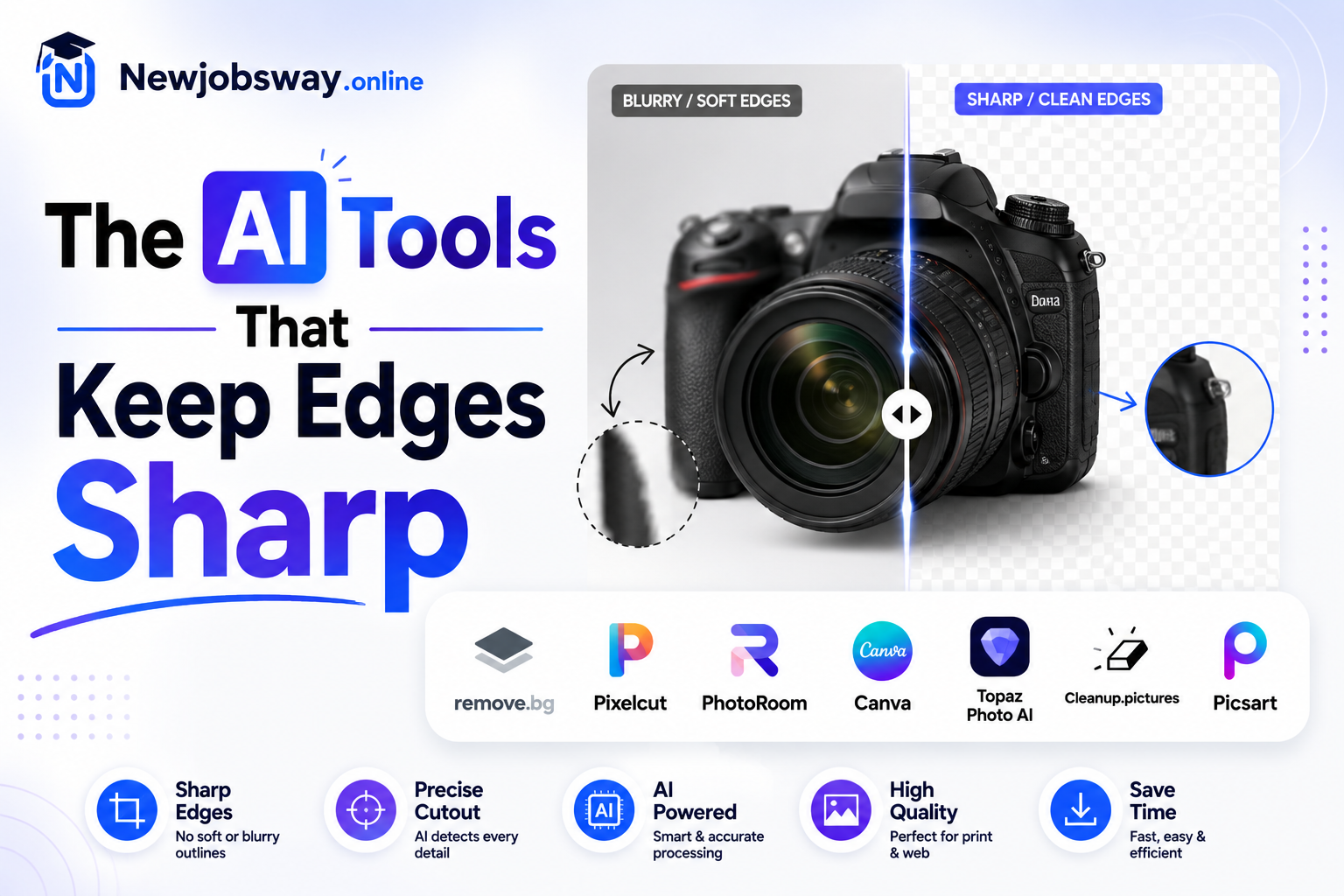 Best for portraits & hair
This is the one I keep coming back to for anything with hair. It handles flyaways and wispy edges better than almost every other automated tool — not perfectly, but consistently better. The free tier exports at lower resolution, which is frustrating for professional work, but the paid plan unlocks full-resolution downloads. Where remove.bg really earns its reputation is on human subjects. Animal fur is hit-and-miss. Complex product edges can struggle. But for headshots, profile photos, and portraits, it’s genuinely excellent and saves hours of manual work.
My friend with the clothing brand switched to this and immediately noticed the difference on fabric edges. Photoroom is built specifically with product photography in mind, and it shows. Textured fabric, packaging, accessories, small product details — it handles all of these noticeably better than general-purpose tools. The mobile app (iOS and Android) is excellent too — she now shoots and edits on her phone without touching a laptop. The batch processing feature handles dozens of product shots at once, which alone is worth the subscription if you run any kind of shop.
If you need something free that doesn’t watermark your output, BGremover from Icons8 is the one to try first. It’s not as powerful as remove.bg on complex hair, but for straightforward subjects — people, products, simple objects — the edge quality is respectable and the full-resolution download is genuinely free. Clean interface, quick processing, no account required to try it. I’ve used it for social media graphics where perfect edge sharpness isn’t critical and it’s worked fine every time.
Canva’s built-in background remover got a significant upgrade — it now includes an Erase and Restore brush that lets you manually fix areas the AI got wrong. This is the key feature most automated tools miss. When the AI blurs or incorrectly removes part of your subject, you can paint it back with the Restore brush — and the restoration is sharp, not feathered. For anyone already using Canva for design work, this is the most practical workflow because you never leave the app. The AI gets you 90% there; the manual brush handles the tricky edges.
If your work requires professional-grade edge quality — commercial photography, product campaigns, anything being printed — Topaz Photo AI running locally on your machine is in a different league from web-based tools. It uses multiple AI models specifically trained on edges, and the hair masking is genuinely impressive. Runs offline (no upload size limits, no privacy concerns), processes using your GPU, and gives you manual refinement tools. Expensive compared to subscription tools, but if you’re a photographer doing this professionally, it pays for itself quickly.
If you need to process hundreds of images at once — product catalogues, team photos, real estate shots — Slazzer has the best batch processing I’ve tested. Upload a folder, it processes everything, downloads as a ZIP. Edge quality is solid for most subjects and the API integration means you can automate the whole workflow if you’re technical. For small businesses processing product images in volume, the per-image cost works out significantly cheaper than manual editing services.
“The blur isn’t a failure — it’s the AI hiding its own uncertainty. The best tools either eliminate that uncertainty or give you the brush to fix it yourself.”
Quick Verdict at a Glance
Step-by-Step: Getting the Sharpest Possible Result
This workflow applies to any tool above, but is most useful with Canva or remove.bg where manual refinement is available:
Where Every Tool Struggles — Be Realistic
Glass, clear bottles, water, mirrors — the subject and background are literally blended in the image. No tool handles this well automatically. Either shoot on pure white (so transparency barely matters) or do it manually in Photoshop. There’s no shortcut here.
A white cat on a white wall. A blonde person in front of a beige wall. When subject and background share similar tones, no AI can reliably distinguish them. This is a shooting problem, not a tool problem — change the background color before you try to remove it.
Mistakes That Make Edges Worse
JPEG compression creates artifacts around edges — blocky distortions that confuse the AI and result in jagged or blurry cutouts. Always use the original uncompressed image. Running a heavily compressed file through a background remover is like asking someone to cut precisely along a line that’s already smeared.
Resizing a PNG after background removal can cause edge transparency to render incorrectly, especially when scaling down. Resize first, then remove the background — or export full resolution and let your platform handle resizing. The order matters more than most people realize.
Edge quality always looks better in a thumbnail than at full resolution. Before you download, always zoom to 100% and check actual edge pixels. I’ve downloaded images that looked fine in preview and discovered blurry edges only when placing them in a design.
remove.bg is great for portraits but mediocre for products. Photoroom is excellent for e-commerce but overkill for a quick profile crop. Topaz is professional-grade but unnecessary for social media graphics. Match the tool to the job — you’ll get sharper results and spend less money.
What Actually Happened With My Friend’s Store
She switched to Photoroom, started shooting against a white foam board she bought for a few hundred rupees, and the difference was immediate. The lace edges that had been smeared before came through clean. She now processes about 30 product photos per week in under an hour using the batch feature.
The foam board was honestly the bigger factor. Better source image, cleaner result — every time. The AI just had much less guesswork to do.
Her store looks noticeably more professional now. Same products, same photographer (her), same phone. Just a white board behind the mannequin and a tool that handles fabric edges properly.
Start here: portraits and headshots → try remove.bg first. Product photography → Photoroom. Need it free with no watermark → BGremover by Icons8. Already using Canva → use the built-in Restore brush for tricky edges. And whatever tool you pick — shoot against a contrasting background, use the original high-resolution file, and zoom to 100% before you call it done. The blur problem is usually half shooting and half tool choice.