
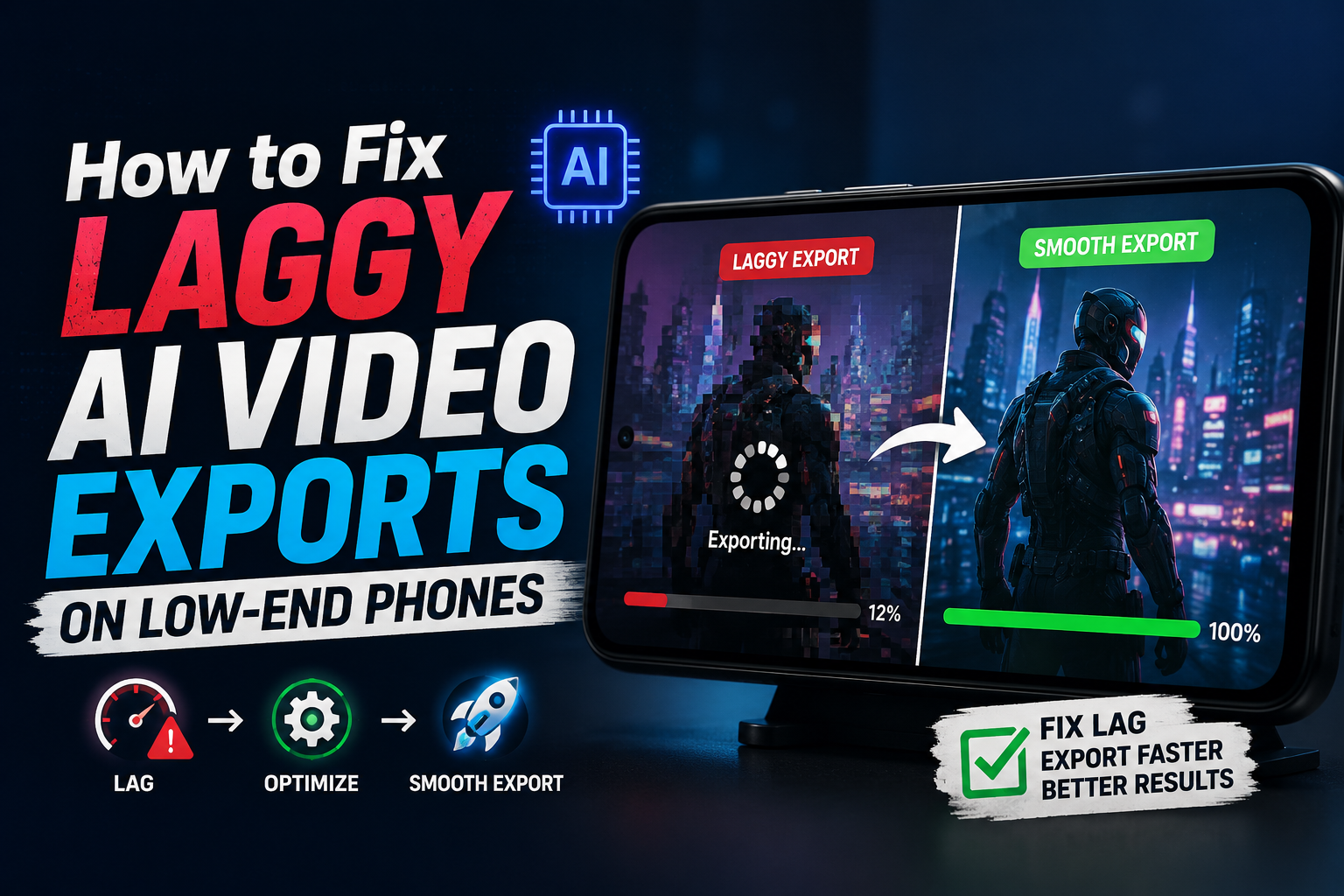
My cousin has a Tecno Spark 10 — 3GB RAM, MediaTek Helio G85. He tried exporting an AI-enhanced Reel from CapCut and the phone took 47 minutes to export a 60-second clip. The result was still laggy. Here’s everything that actually helped.
AI video effects — background removal, auto-captions, sky replacement, beauty filters, speed ramping — are everywhere in editing apps now. CapCut, VN, InShot, Kinemaster all offer them. The problem is that these features were designed assuming you have a flagship phone with 8GB+ RAM and a capable GPU.
On a budget or mid-range Android phone, applying these AI effects and then trying to export the result is an exercise in frustration. The export freezes mid-way. The progress bar moves at a crawl. The phone heats up like a hand warmer. And sometimes — after waiting twenty minutes — the app crashes and you have to start over.
I’ve helped fix this for several people running Tecno, Infinix, Redmi Note (the lower models), Realme C-series, and Samsung A-series phones. The solutions are consistent. Here’s what actually works.
Why AI Video Export Is Hard on Budget Phones
Before fixing anything, it helps to understand what’s actually happening. AI video effects don’t just apply a filter — they process every single frame of your video using machine learning models. For a 30-second clip at 30fps, that’s 900 individual frames the phone has to run through an AI model.
On a flagship phone, this happens on dedicated neural processing hardware. On a budget phone, it all goes through the main CPU — which is slower, generates more heat, and competes with everything else running on the phone at the same time.
Most budget phones have 3–4 GB RAM total. The Android OS uses about 1.5–2 GB just to run. That leaves 1–2 GB for CapCut — and AI video processing needs more than that. Every other app running in the background reduces what’s available and makes the export slower or causes crashes.
The Fixes That Actually Make a Difference
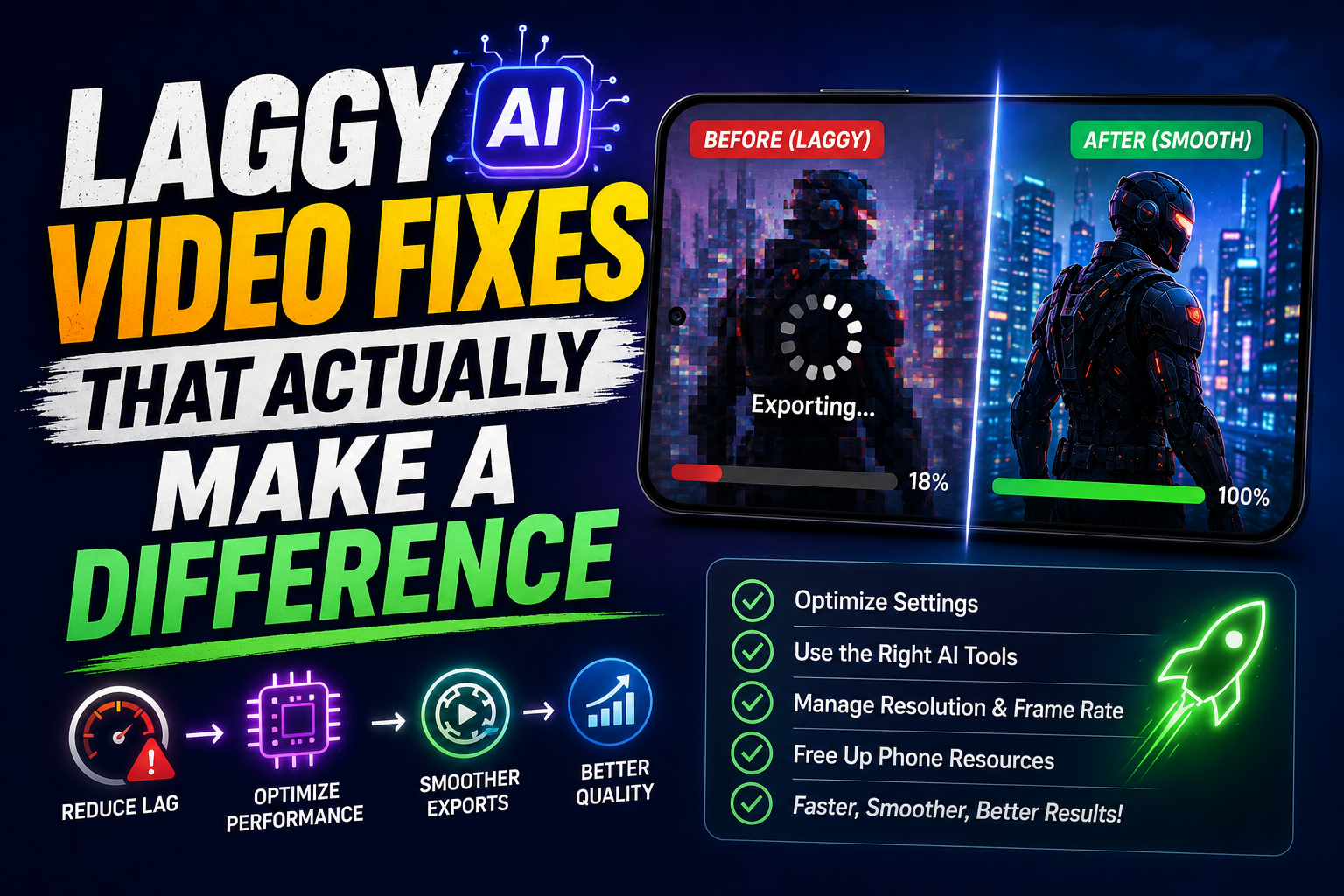 // Group_01 — Before You Export
This single step reduces export time the most on low-RAM phones. Every app running in the background is consuming memory that your editing app needs for AI processing. WhatsApp, Chrome, YouTube, Facebook — all of them need to be fully closed before you start exporting.
- Press the Recent Apps button (square or gesture swipe)
- Close every app — tap “Close All” or swipe each one away individually
- On Samsung: tap “Close All” then go to Settings → Device Care → Memory → Clean Now
- On Xiaomi/MIUI: swipe away all recents, then open Security app → Cleaner → Scan & Clean
- Wait 30 seconds, then open your editing app and start the export immediately
- Don’t open any other app during the export
During AI video export, the app needs to write temporary frames and processing files to storage. On a phone with only 200MB free, the app runs out of temp space mid-export and either crashes or produces a corrupted file. You need breathing room.
- Go to Settings → Storage — you want at least 3GB free before exporting
- Delete screenshots and duplicate photos (these accumulate fast)
- Move photos and old videos to Google Photos and delete local copies
- Clear WhatsApp media: WhatsApp → Settings → Storage and Data → Manage Storage
- Uninstall apps you haven’t used in the past month
If you’ve been editing for 30+ minutes before exporting, your phone is already warm. When you start the AI export, it immediately heats up further — triggering thermal throttling that cuts CPU performance by 40–70%. A cool phone exports significantly faster than a warm one.
- Save your project, close the app, lock the screen
- Place the phone on a flat surface (not a soft surface like a bed that traps heat)
- Remove the phone case if it has one — cases trap heat
- Wait 10–15 minutes before opening the app and starting the export
- Do NOT charge while exporting on a budget phone — charging adds heat. Charge first, unplug, then export
- If you must charge: use the slowest charger available, not the fast charger
“A hot phone exports at half speed. Nobody tells you this. Cooling down before a long export saves more time than any setting change.”
This is the counterintuitive fix that makes the biggest difference. Going from 1080p to 720p halves the number of pixels the AI has to process — and on a budget phone, the export time can drop from 40 minutes to 8 minutes. For TikTok and Instagram Reels viewed on phone screens, 720p looks indistinguishable from 1080p to most viewers.
- In CapCut: tap the export button → set Resolution to 720p
- Set Frame Rate to 30fps (not 60fps — 60fps doubles the work)
- In VN: Project Settings → Resolution → HD 720p
- In Kinemaster: Export → Resolution → 720p
- Test: export a 15-second clip at 720p first to confirm quality is acceptable before committing to the full export
Stacking multiple AI effects on the same clip multiplies the processing load. Background removal + beauty filter + color AI + auto-stabilization on a single clip will take forever on a budget phone. Identify which AI effects are actually visible in the final output and remove the rest.
- Go back to your project and check each clip for AI effects applied
- For each effect, ask: will the viewer actually notice if this is removed?
- Remove at least one AI effect and test export speed — the difference is usually dramatic
- Beauty filters and background blur are often the heaviest — try removing these first
- If you need background removal: apply it only to the clips where the background is actually visible, not entire clips where it’s cut away quickly
Budget phone manufacturers (Tecno, Infinix, Realme, Samsung A-series) aggressively pause background app processes to save battery. During a long AI video export, this can pause the export thread entirely — causing the progress bar to freeze and eventually crash the app.
- Go to Settings → Apps → [CapCut/VN/Kinemaster] → Battery
- Set battery optimization to “Unrestricted” or “No restrictions”
- Tecno/Infinix: Settings → App Management → [App] → Battery → No restrictions
- Realme: Settings → Battery → [App] → Background power consumption → No restrictions
- Keep the phone screen ON during export — many phones pause processing when screen turns off
Editing apps accumulate large caches of preview renders and temp files. On a 32–64 GB phone, CapCut’s cache can reach 3–5 GB after a few months of use — consuming storage and RAM that slows down export.
- Go to Settings → Apps → [App Name] → Storage → Clear Cache
- Also clear from within the app if possible: CapCut → Settings → Storage → Clear Cache
- Do NOT clear Data (that deletes your projects)
- After clearing, open the app — it will rebuild its cache from scratch and feel snappier
Not all editing apps are equal on low-RAM phones. CapCut is powerful but heavy. VN Video Editor is significantly lighter and handles AI exports better on budget hardware. If CapCut is consistently slow or crashing, VN is worth trying — it has most of the same features with better performance on 2–3 GB RAM phones.
| App | RAM Usage | AI Features | Low-End Performance |
|---|---|---|---|
| CapCut | High (800MB+) | Full AI suite | Struggles on 3GB |
| VN Video Editor | Medium (400–600MB) | Most AI features | Good on 3GB+ |
| InShot | Medium (350–500MB) | Basic AI filters | Reliable exports |
| Kinemaster | High (700MB+) | Good AI tools | OK on 4GB+ |
| YouCut | Low (200–300MB) | Limited AI | Very fast exports |
For videos longer than 90 seconds, budget phones often crash mid-export because RAM fills up processing the full duration at once. Splitting the project into shorter segments and exporting each one separately — then joining them after — is slower overall but dramatically more reliable.
- Divide your project into 30–45 second segments
- Export each segment as a separate video file
- Use InShot or YouCut (both very light) to join the exported segments
- These joining apps don’t re-encode the video — they just combine the files — so no quality loss
CapCut has a free PC version (Windows and Mac) that handles AI video exports significantly faster than any budget phone because it has access to more RAM and can use the PC’s GPU. If you have access to any laptop — even a budget Windows laptop from 2019 — editing and exporting there will be faster than on a low-end phone.
- Download CapCut PC from capcut.com (free)
- Transfer your footage to the PC (USB cable or Google Drive)
- Edit and export on PC — export a 60-second clip in under 2 minutes on most laptops
- Transfer the finished video back to phone for posting
If all else fails and you can’t reduce export time further — schedule your exports strategically. A cool phone at night with battery optimization disabled, all apps closed, and screen staying on will consistently export faster than a hot phone mid-afternoon after heavy use.
- Set screen timeout to maximum (Settings → Display → Screen Timeout → Never or 30 minutes)
- Plug in the charger before exporting (but if phone gets very hot, unplug)
- Keep the phone on a flat hard surface (table, not bed)
- Start the export when you don’t need the phone for 30–45 minutes
- Return to find a completed export rather than watching it crawl
Mistakes That Make It Worse
Fast charging generates significant heat. Running a demanding AI export while fast charging is one of the fastest ways to trigger thermal throttling on a budget phone — the CPU slows itself down to prevent damage. Either charge fully and then export, or use a slow charger if you need to charge during export. Never fast-charge and run a demanding export at the same time on a budget phone.
Checking Instagram, watching YouTube, or even just browsing while a video exports on a 3GB RAM phone will slow the export significantly — and sometimes cause it to crash. Set the phone down, keep the screen on the export progress screen, and don’t touch it. The export needs all available resources.
Many editing apps let you apply an AI effect like “auto color” or “AI enhance” to the entire project at once. On a long video, this processes every single frame with AI. Instead, apply AI effects only to individual clips where they’re noticeably needed — not as a blanket project-wide setting.
Tecno and Infinix budget phones have an aggressive background process killer that’s more aggressive than standard Android. During long exports, it can kill the editing app entirely and lose your progress. In addition to disabling battery optimization (Fix 06), also disable “Auto-start restriction” for your editing app: Settings → App Management → [App] → Auto-start → Allow.
What Actually Helped My Cousin’s Tecno Spark
Going back to that 47-minute export situation — after going through these fixes, the same project exported in 9 minutes. The combination that made the biggest difference: closed all background apps, set the resolution to 720p instead of 1080p, removed the AI beauty filter (which he’d applied but barely noticed in the final video), and disabled battery optimization for CapCut.
The 720p change alone cut the export from 47 minutes to about 18. The rest of the fixes got it to 9. The final quality difference between the 720p export and the original 1080p attempt was invisible on his phone screen and on Instagram.
He now exports consistently in under 12 minutes for 60-second Reels, even with background removal applied, by following the same checklist every time.
All background apps closed ✓ → 3GB+ storage free ✓ → Phone cool (not warm) ✓ → Battery optimization disabled for editing app ✓ → Screen timeout set to Never ✓ → App cache cleared ✓ → Resolution set to 720p 30fps ✓ → Unnecessary AI effects removed ✓. Eight checks, takes two minutes. Do this before every AI video export on a low-end phone and the difference will be immediate.
Start with three things: close all background apps, drop to 720p, and cool the phone before starting. Those three changes alone will cut export time significantly on most budget Android phones. Disable battery optimization for your editing app to prevent mid-export crashes on aggressive OEM skins like Tecno, Infinix, and Realme. And if you’re still hitting consistent issues — switch to VN Video Editor which handles the same AI features with significantly lower RAM usage. The phone isn’t broken. It just needs the right conditions to do a genuinely demanding task.