I Tried Every AI Video Enhancer So You Don’t Have To
Blurry family videos, shaky phone clips, pixelated recordings — here’s which AI tools actually fixed them and which ones wasted my time.
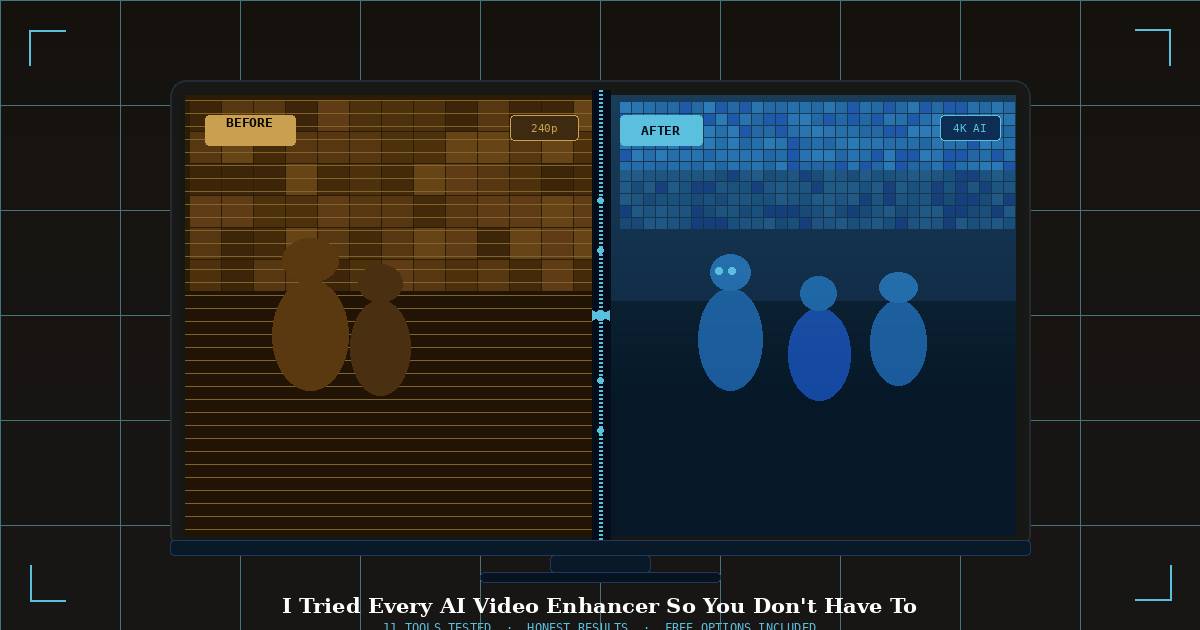
Last Eid, my uncle handed me a USB drive and said “beta, these are our old wedding videos — can you make them look better?” The videos were from the early 2000s, recorded on some ancient camcorder, 240p, shaky, with that horrible VHS scan-line noise over everything. I had no idea what I was getting into.
I spent the next three weekends going down the rabbit hole of AI video enhancement. Some tools promised miracles and delivered pixelated garbage. Some were so expensive I laughed out loud. And a few — genuinely — turned those old clips into something the whole family could actually watch on a TV without squinting.
Here’s everything I learned, without the fluff.
What “AI Video Enhancement” Actually Does
Before I wasted money on the wrong tool, I wish someone had explained this simply. AI video enhancement is basically three different things that often get bundled together under one marketing label:
- Upscaling — taking a 480p video and stretching it to 1080p or 4K, but intelligently filling in the missing detail using AI instead of just blurring everything.
- Denoising — removing grain, static, VHS artifacts, and compression noise from old or heavily compressed footage.
- Frame interpolation — if your old video runs at 24fps and looks choppy, AI can generate in-between frames to make motion smoother.
Most people need all three. Most tools only do one or two well. That mismatch is why so many people try these tools, get disappointed, and give up — when really they just picked the wrong one for what they actually needed.
No AI tool can recreate detail that was never captured. If a face is completely blurred in the original, the AI will guess — and sometimes the guess looks wrong or uncanny. Manage expectations before you start.
The Tools That Actually Delivered
Best Overall
This is what the professionals use, and after testing it, I understand why. It runs locally on your computer — no upload limits, no privacy concerns — and the results on my uncle’s old wedding videos were genuinely emotional to watch. Faces became recognizable. The garden in the background went from a green blur to actual leaves. It’s not cheap — around $299 one-time — but if you have a serious collection of old footage to restore, nothing else comes close. Works on Windows and Mac, uses your GPU for processing.
Best Free Option
I did not expect a free tool to work this well. Upscayl is open source, runs entirely on your machine, and uses Real-ESRGAN models to upscale videos and images. The interface is simple — drag your file in, pick your upscale level, hit go. It’s slower than Topaz and doesn’t have the frame interpolation feature, but for basic upscaling of old clips it does a genuinely impressive job. If you’re not ready to spend money yet, start here.
Best for Online / No Installation
If you just have one or two clips you want to quickly clean up and you don’t want to install anything, Clideo works in the browser. Upload, enhance, download. The free tier puts a watermark on exports which is annoying, but the paid plan is reasonable. The results aren’t as sharp as Topaz but for social media clips or WhatsApp-quality videos it’s completely adequate. Fast processing, clean interface.
Best for Colorization + Restoration Combined
This one surprised me. MyHeritage started as a family history platform, but their video colorization and restoration AI is genuinely excellent — especially for old black-and-white footage. If you have grandparent wedding videos from the 60s or 70s in black and white, this is the tool to try. It adds natural-looking color and sharpens at the same time. Not the cheapest per-video, but for special family archives it’s worth it.
Quick Tool Comparison
One more worth mentioning: if you already pay for Adobe Creative Cloud, Premiere Pro now has a built-in “Enhance” feature that uses AI to upscale footage. It’s not as powerful as Topaz but it’s already in a tool you’re paying for, so check it before buying anything new.
And CapCut — yes, the TikTok editing app — has an AI video enhancer that works surprisingly well for phone clips. It’s free, runs on mobile, and takes about 30 seconds. If your problem is just shaky or slightly blurry smartphone videos, honestly try CapCut first before paying for anything.
Step-by-Step: How I Actually Restored Those Wedding Videos
Here’s the exact process I used with Topaz Video AI, which you can adapt for whichever tool you choose:
- Convert the source file first. Old camcorder files are often in weird formats (DAT, MOD, MTS). Use HandBrake (free) to convert everything to MP4 before enhancing. The AI tools work better with a clean input.
- Do a short test clip. Don’t process the whole 2-hour video first. Cut 30 seconds from the most important scene, run it through, check the result. Enhancement takes real time — sometimes hours per clip on a regular laptop.
- Choose the right AI model. In Topaz, there are different models for different problems — “Proteus” for general footage, “Iris” for faces, “Nyx” for heavy noise. If there are people in the video, always use a face-optimized model.
- Set upscale to 2x first, not 4x. I made the mistake of immediately going to 4K on everything. Often 2x upscale looks more natural — 4x can sometimes over-smooth faces and make them look like video game characters.
- Export at the same frame rate as the original. Don’t turn on frame interpolation unless the original video is visibly choppy. It adds processing time and sometimes creates weird ghost artifacts in footage that didn’t need it.
- Do color grading after, not before. Run the enhancement first, then bring the enhanced clip into CapCut or DaVinci Resolve (free) to adjust warmth, brightness, and contrast. Trying to fix color in a degraded clip before enhancing it gives worse results.
Mistakes I Made (So You Won’t)
I was working from files that had already been copied multiple times over the years — each copy adding more compression artifacts. Always try to find the original source file, even if it’s on an old hard drive or tape. Enhancing a heavily compressed copy of a copy gives much worse results than working from the original.
Some web-based enhancers upload your video to their servers. For public content that’s fine. For private family footage — weddings, kids, home videos — I’d strongly recommend using local software like Topaz or Upscayl instead. Your family’s private moments shouldn’t sit on someone else’s server.
Video enhancement tools handle the picture, not the sound. Muffled or distorted audio is a separate problem — use Adobe Podcast (free web tool) or Descript for audio cleanup. I wish I’d known this before I spent an hour wondering why the video looked great but the audio still sounded like it was recorded inside a tin can.
On a mid-range laptop without a dedicated GPU, a 10-minute video at 2x upscale can take 2–4 hours to process. If you have a lot of footage, either use a GPU-powered machine or use a cloud-based tool. Don’t start a large batch job and expect it to be done quickly.
What About Free AI Tools on YouTube?
You’ve probably seen videos promising “free AI video enhancement with Google Colab” and similar tutorials. These do work — they use Real-ESRGAN or GFPGAN models running in Google’s free cloud environment. But the setup requires some comfort with copying code, dealing with Google Drive paths, and occasionally debugging when things break. If you’re technical, it’s a great free option. If you just want something that works without frustration, stick to the apps mentioned above.
There are sketchy websites that claim to enhance videos for free but are really just applying a sharpening filter in the browser. A real telltale sign: if processing takes under 5 seconds for a 5-minute video, it’s not doing real AI enhancement.
The Results That Mattered
The technical part of this is interesting. But what actually stayed with me was showing my uncle the restored clips at a family dinner. His father, who passed away years ago, was suddenly visible — really visible — in footage that had been a blurry ghost for two decades. Clear enough to see his expression. Clear enough that my uncle’s kids, who never met him, could actually see his face.
That’s a strange kind of gift that these tools can give. They’re not perfect. They make guesses. Sometimes the guesses are wrong. But for old family footage that would otherwise just keep degrading on someone’s shelf, AI enhancement is genuinely worth the effort.